AWS - VPC peering
 Fictitious Cloud Requirement Document
Company Overview
🔹 Company Name: NovaCart Technologies
🔹 Industry: Global E-commerce & Logistics
🔹 Company Size: ~1,200 employees
🔹 Regions of Operation: North America, Europe, Asia-Pacific
NovaCart is a rapidly growing e-commerce platform that supports millions of daily users. The company is migrating from an on-premises data center to AWS to improve scalability, security, and global availability.
 Cloud Engineering Task
You are the Cloud Engineer responsible for designing the AWS network connectivity model.
Your Responsibilities:
Consider VPC Peering for NovaCart’s use case
Explain:
-
How each option works
-
Their advantages and limitations
-
Impact on scalability, security, and operations
-
Recommend one solution and justify why it best meets NovaCart’s requirements.
VPC Peering
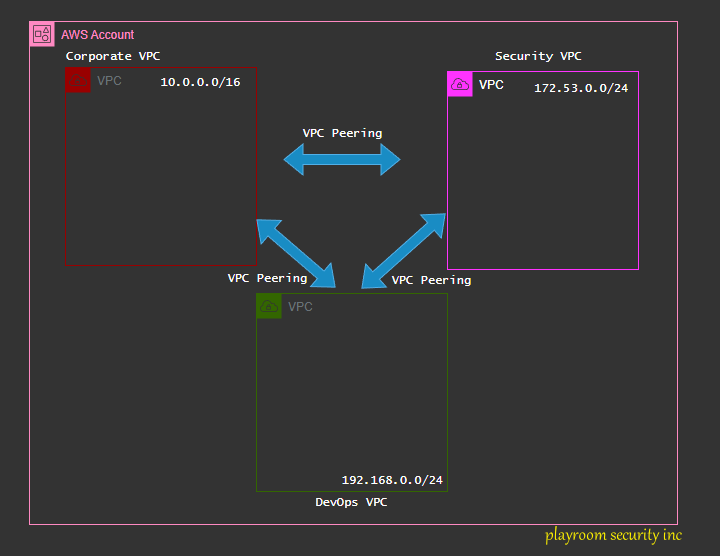
Check out the Official AWS Documentation for more indepth information on VPC Peering
To enable VPC peering, we would have to create two or more VPC (Virtual Private Clouds) in your AWS Account.
Steps to create a VPC using the AWS Console
📢 Step 1
Login to your AWS Account as an IAM User and go to the search menu. Search for VPC
🔊 Step 2
On the VPV Dashboard glade. Click on Create VPC.
📯 Step 3
- Select
VPC onlyif not automatically selected. - Fill in the
Name tagoption. - Fill in the IPv4 CIDR (You can use those ones in the image above)
- Leave IPv6 CIDR block as
No IPv6 CIDR block. - Leave the
TenancyasDefault. - Leave the
VPC encryption vontrol($)as None. - Click
Create VPCat the bottom right-hand corner for AWS to deploy the VPC.
Repeat same process as above for the second VPC, but be sure to change the IPv4 CIDR option. That is mandatory.
🔔 Step 4
View the already created VPC in your VPC Dashboard.

Creating a VPC via AWS CLI
AWS VPC create
Since we will be creating three (3) VPCs, I wouldn't expect you run this command three times. It is just cumbersome and tiring. Let's script this using Bash.
For simplicity, I will be creating three (3) VPC with incremental IPv4 CIDR like 10.0.0.0/16, 10.1.0.0/16 and so on.
Sample Bash Script
#!/usr/bin/env bash

set -euo pipefail

# Set variables
REGION="us-east-1"
BASE_CIDR="10"
INDEX=0

VPC_NAMES=("prod-vpc" "staging-vpc" "dev-vpc")

for VPC_NAME in "${VPC_NAMES[@]}"; do
CIDR_BLOCK="$BASE_CIDR.$INDEX.0.0/16"

echo "Creating VPC: $VPC_NAME ($CIDR_BLOCK)"

VPC_ID=$(aws ec2 create-vpc \
    --region "$REGION" \
    --cidr-block "$CIDR_BLOCK" \
    --tag-specifications "ResourceType=vpc,Tags=[{Key=Name,Value=$VPC_NAME}]" \
    --query 'Vpc.VpcId' \
    --output text
)

echo "VPC created: $VPC_ID"

echo "Enabling DNS support for $VPC_ID"
aws ec2 modify-vpc-attribute \
    --region "$REGION" \
    --vpc-id "$VPC_ID" \
    --enable-dns-support

echo "Enabling DNS hostnames for $VPC_ID"
aws ec2 modify-vpc-attribute \
    --region "$REGION" \
    --vpc-id "$VPC_ID" \
    --enable-dns-hostnames

((INDEX++))
done
Creating VPC Peered network between all three VPCs.
Back to the AWS Console, using the Search feature, search for VPC.
-
On the left options, search for
Peering connections. and clickCreate peering connection. -
Choose a
Namefor the peering connection (optional). I will usevpc-peering-corporate-security. - Select a VPC to peer with. In my case I will choose the
VPC corporateVPC. - Since all the three (3) VPC resides in one AWS account, I will choose
My accountunder theSelect another VPC to peer with. - Also I deployed all three (3) VPCs in
us-east-1so I will leave it as default. - The Accepter VPC ID would be the
VPC Security.
Since this is a demo, and we would need to aceept the in-coming peering request. There should be a Pending acceptance from the just created vpc peering.
- Click the
Actionsdrop-down and SelectAccept request. - After reviewing the details of the peering request, click
Accept request.
Complete the remaining vpc peering
There should be no over-laping IPv4 CIDR ranges between two VPC, else it would fail
My VPC Peering setup
My VPC peering setup would be:
playroom-security vpc → playroom devops vpc
playroom-security vpc → playroom corporate vpc
playroom-devops vpc → playroom corporate vpc
Troubleshoot
 If you get this error:
 Error accepting VPC peering connection request. It is because there is an already establised vpc peering between the two (2) VPCs.
Using the AWS CLI to create a VPC peering
Creating VPC Peering
In the same AWS account, same region.
aws ec2 create-vpc-peering-connection \
    --vpc-id vpc-1a2b3c4d \ # VPC ID for the Requester
    --peer-vpc-id vpc-11122233 \ # VPC ID for the Accepter
    --peer-region us-east-1
In another AWS account
aws ec2 create-vpc-peering-connection \
    --vpc-id vpc-1a2b3c4d \ # VPC ID for the Requester
    --peer-vpc-id vpc-11122233 \ # VPC ID for the Accepter
    --peer-owner-d 1234567999 \ AWS account ID for the Accepter
    --peer-region us-east-1
In the same account, different region.
Routing (VPC peered networks)
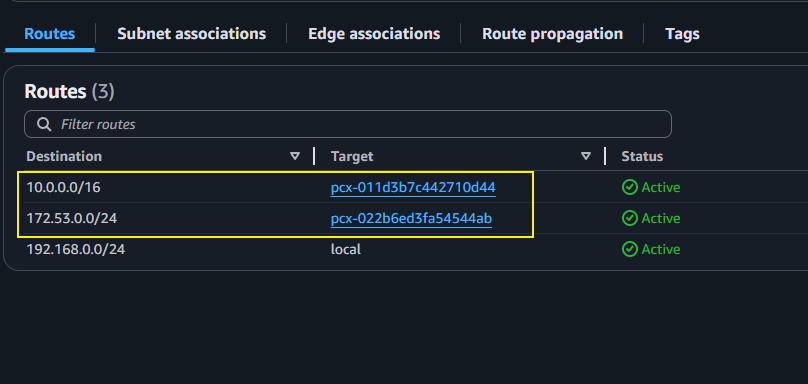
The next step is to create a route table entry that will set the Destination address and our VPC peering connection id.
 Go to the VPC Console.
Click on Route tables on the left hand menu options.
Expand the VPC tab to be sure you are selecting the right VPC.
Select any of the VPCs by clicking on their Route table ID.
On the Route tab, click Edit routes towards the far right.
Click on Add route.
Since the selected VPC is peered to both other VPCs. On the Target option select Peering Connection.
A downdown would appear starting with pcx- click on the drop down and select the which peer connection you want to configure the route for.
Add the Destination address to the Destination option.
Destination Address
The destination address would always be the REVERSE between the Requestor VPC and the Accepter VPC.
Please note
If you chose the Requester VPC to configure a Route table, then the Destination address should always be the ACCEPTER VPC, and visa versa.
Note
Work on the rest of the peered connected route tables
You should something like this at the end of this demo.
✅ Advantages of AWS VPC Peering
Note
Success
- Simple & fast to set up.
- Direct, point-to-point connectivity between two VPCs.
Success
- Low latency & high bandwidth
- Traffic stays on the AWS backbone (no internet, no NAT).
Success
- Cost-effective
- No hourly charge—only standard data transfer costs.
Success
- Secure by default
- No public IPs required; traffic remains private.
Success
- Cross-account & cross-region support
- Peer VPCs across AWS accounts and regions.
❌ Limitations of AWS VPC Peering
Question
Failure
No transitive routing
VPC A ↔ VPC B ↔ VPC C does not allow A ↔ C traffic.
Failure
CIDR blocks must not overlap.
Overlapping IP ranges prevent peering.
Failure
Poor scalability.
Mesh architectures become hard to manage as VPC count grows.
Failure
Manual route table management.
Routes must be added explicitly for each peered VPC.
Failure
No centralized networking control.
Each peering connection is managed individually.
🧠 When to Use VPC Peering
Tip
✔ Small number of VPCs
✔ Simple, one-to-one connectivity
✔ Low-latency, private communication
👍 Recommendations
Tip
👉 AWS Transit Gateway